If your Pokémon TCG Pocket collection has disappeared after changing phones or reinstalling, first identify the save you want and the login that was linked to it. A new phone, a successful Google login and an active Premium Pass are three different pieces of information. None, by itself, confirms that the correct collection has loaded.
Checked against official guidance on November 5, 2026. The two diagrams are original TiptapDB explanations, not screenshots or a record of a recovery performed by us. Direct links below open Pokémon Support’s illustrated instructions. Menus and available providers can vary by device, age and region.
Choose your starting point
- The correct collection still opens on the old phone: start with Route A, then transfer using Route B.
- The old phone is unavailable, but you know the linked login: use Route B.
- You see “already linked,” missing save data or a different collection: use Route C. These descriptions are not a diagnosis.
- You are moving between iPhone and Android, or a login button is missing: use Route D.
- The provider login fails or the app crashes during sign-in: use Route E.
- No linked login works, or the old save was never linked: use Route F to request an investigation.
Before you start: separate the save, the login and the store
Write a short private record for the collection you want: player name, level, Support ID if available, last working device and the provider you used. Mark anything uncertain as unknown. Keep the lost save separate from any fresh save you have just opened. A friend’s profile view or an old screenshot may help you recognize it, but do not substitute a Friend ID for a Support ID.
| What you are checking | Why it matters |
|---|---|
| Pocket save | The collection and progress you want to recover. |
| Linked Nintendo, Google or Apple account | The identity used by the transfer flow to find an existing save. |
| App Store or Google Play account | The platform account responsible for a Premium Pass purchase and renewal. |
For example, using a Gmail address for a Nintendo Account does not tell you to press Google in Pocket. Choose the provider that was linked, then the correct identity within that provider. If a browser automatically offers an account, read it before continuing.
Where to find your Support ID
- On the device containing the save you want, open Pocket and stay at the title screen, before Tap to Start. Tap the three-line menu (≡) in the upper-right corner.
- Look at the bottom of that menu for the Support ID label. In the official example it sits below Company Information and above the round X close button. Tap the copy icon immediately to its right.
- Paste the ID into a private note or save your own screenshot, labelled with the player name and date. Use the ID from your game, not the demonstration ID in the example.
- If this installation now contains a fresh or different save, identify its ID separately from the lost save. If you cannot open the old installation and have no record, tell Support the old Support ID is unknown. Do not substitute a Friend ID or reinstall just to look for it.
Real game screens: the official Support ID walkthrough
Open the publisher’s illustrated guide: screen 1 highlights the title-screen menu, and screen 2 highlights Support ID and its copy icon. These are genuine publisher-provided interface examples, shown on the official site. Checked November 5, 2026.
View the real Support ID screenshotsRoute A: the old device still opens the correct collection
- Open Pocket on the old device and check that the player and collection are the ones you want to keep.
- Tap Menu at the bottom right, then Other, then Account. From the title screen, the alternative route is the upper-right Menu, then Account.
- Check the Linked section. If no account is linked, choose a supported provider you control and complete its sign-in. Do this from the original save, not a new collection on the replacement phone.
- Return to Account and confirm the provider appears under Linked. Record which identity you used privately. Leave the old device intact until the new one opens the correct save.
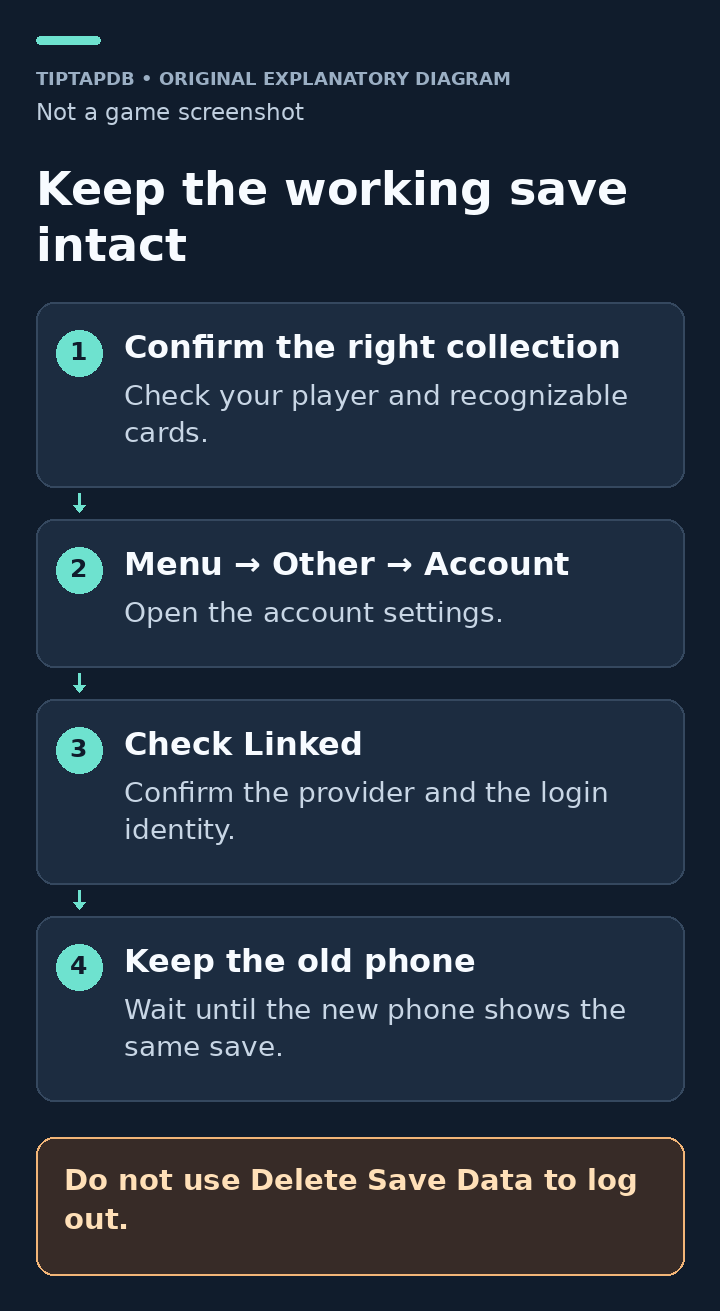
Original TiptapDB explanatory diagram: confirm the collection, check its linked login and keep the working phone intact. This is not a game screenshot. The official illustrated instructions are linked below.
Account-linking steps and original interface images
Official Pokémon guidance.
See official steps and screenshotsRoute B: transfer an existing save to the new device
- On the new installation, work through country/region, age confirmation and the terms/privacy screens using your real details.
- At the save-data choice, select Transfer Existing Save Data.
- Choose the provider already linked to your original collection, then sign in to that exact account.
- When Pocket opens, compare the player name, level and recognizable collection details. Where available, compare Support ID. Keep the old phone until these match.
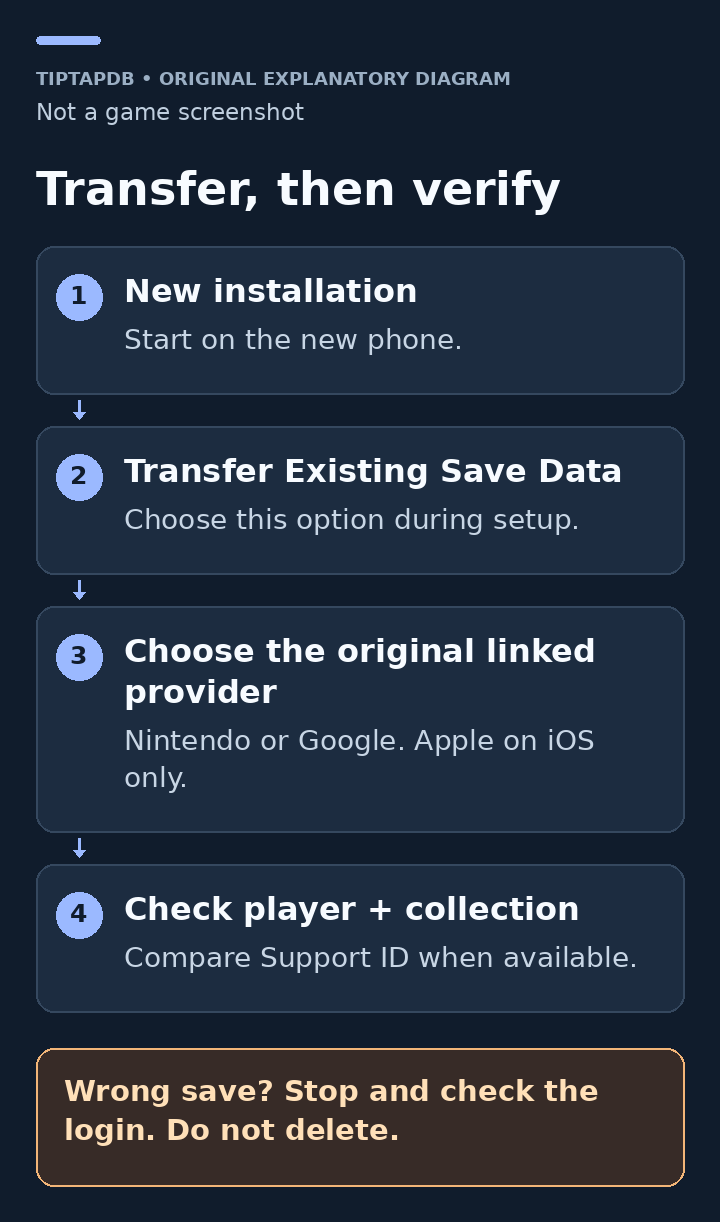
Original TiptapDB explanatory diagram: transfer the existing save using its linked provider, then verify the player and collection. This is not a game screenshot. See the official transfer screens below.
Official transfer instructions and transfer-screen images
Official Pokémon guidance.
See official steps and screenshotsYou can use one linked save on more than one device, but not at the same time. Do not assume the old device must be unlinked first. Once the correct collection is confirmed, check the Premium Pass section below before changing subscriptions.
Route C: “already linked,” no save found or the wrong collection
First record the full message and where it appears: the Account screen inside a game, the first-launch transfer flow, or Nintendo/Google/Apple’s own sign-in page. “Linked” under a provider in Pocket’s Account screen is a status indicator. An error during a new linking attempt is a different situation.
You are inside a fresh save and trying to link the old account
Stop before treating the Account menu as a way to load a different collection. The documented linking route attaches an account to the save currently open; the documented transfer route starts during initial setup. Record which save is on each device. If you cannot reach that setup safely, ask Support how to proceed rather than deleting a save or repeatedly clearing app storage.
If you have another compatible device you control that does not contain a save you need to preserve, you can try Route B there with the confirmed original linked account. This leaves both existing installations untouched. If no safe initial-setup installation is available, use the Support route.
The transfer finds no data, or opens the wrong player
- Check the provider against your old device or records. A matching email address is not enough if you picked the wrong provider.
- Check the selected account within that provider. A personal and a work Google account, or two Nintendo accounts, are different identities.
- If you have evidence of another provider already linked to the same original save, try that documented transfer route. Do not attach unfamiliar accounts to whichever new save happens to be open.
- If the original link is confirmed but the result is still wrong, preserve the error and contact Support. Describe what you checked instead of repeatedly reinstalling.
You want to replace or remove a linked account
Pokémon says you cannot update or remove the account linked to the save you are playing. Deletion removes the link by sacrificing the save. That is not a recovery solution. Do not delete an old email or provider account until you have resolved how you will retain access.
Restrictions on changing or removing a linked account
Official Pokémon guidance.
Read official guidanceRoute D: Android, iPhone and missing login choices
| Move or symptom | Safe next check |
|---|---|
| Android → Android | Use the original linked Nintendo or Google identity. Separately check the Google Play account if you pay for Premium Pass. |
| iPhone/iPad → iPhone/iPad | Use the original linked provider. The Apple identity used for a game link and the App Store purchase account need checking separately. |
| Android → iPhone/iPad | Nintendo and Google are supported choices. Do not create a new Apple-linked collection to replace the original transfer. |
| iPhone/iPad → Android, previously linked only to Apple | Use the iOS-access branch below before removing the old installation. |
| Only Nintendo is offered | Age or region restrictions may limit other providers. Apple is also iOS-only. |
Apple-only save, new Android phone
If the original collection still opens on iOS, check Account for an available Nintendo or Google linking option. If it is offered and you can complete it for that same save, use that newly confirmed provider in Android’s transfer flow. This is a conditional route based on the supported linking and transfer features, not an official promise of an Apple-only rescue. If it is unavailable, conflicts with another save or the old iOS collection will not open, ask Support.
Do not look for a hidden Apple-login toggle on Android. The official guidance limits Apple linking to iOS. Younger players may only be eligible for Nintendo linking; the threshold depends on country or region. Pokémon also notes that newly eligible players may need to wait until the month after their birthday. Use correct details rather than changing age or region to force a button to appear.
Poké gold after a device or operating-system change
Official Pokémon guidance.
Read official guidanceRoute E: the provider login fails or Pocket loops during sign-in
Separate an account-credential problem from an app problem. If you cannot sign in to the original provider itself, recover that provider account through its own official process. Creating a replacement account with similar details will not prove it owns the old Pocket save.
For a crash or return-to-start loop, first close and reopen Pocket, restart the phone, check free storage and try a stable connection. Capture the exact error code. These are troubleshooting checks, not evidence that the collection has been deleted.
The official technical FAQ permits cache troubleshooting and gives an Android route: Settings → Apps → Pokémon Trading Card Game Pocket → Storage & cache → Clear cache. Device labels can differ. Do not press Clear storage or Clear data in its place. The FAQ’s in-game cache step follows linking the game account; if your only working save is not securely linked, preserve it and ask for help first.
Do not make uninstalling your first experiment. Reinstalling without a confirmed link can remove your own route back to a save. If the app remains unusable, send Support the device model, OS and app versions, exact error and the point where the loop occurs. Do not use clone apps, modified installers or a stranger’s “recovery tool.”
Official crash, cache and connection troubleshooting
Official Pokémon guidance.
Read official guidanceRoute F: ask Pokémon Support to investigate the lost save
Use this route when no working linked login can be established, the save was never linked and the device is gone, or a confirmed transfer still fails. Uninstalling an app is not the same event as choosing in-game save deletion. Be precise about which happened.
- Open the official Pokémon TCG Pocket request form linked below. Under What can we help you with?, select Account recovery. The form directs players residing in Asia to the appropriate regional support pages.
- Use an email you can receive replies at. Identify the lost collection separately from any new save now on the phone.
- Describe the last time access worked, what changed, the device and OS, the known linked provider and the complete error text. Include Support ID if you have it. If you do not, say that clearly.
- Read the recovery acknowledgement before submitting. Follow the private follow-up questions accurately. Do not invent a Support ID, device, date or purchase.
Official Pokémon TCG Pocket support form
Public form checked November 5, 2026. No request was submitted for this guide.
Open official support formIf the save itself is not lost but linking or login is broken, the same form also offers Report an error or issue, with Linking an account and Unable to open app or log in among its issue choices. Describe the actual failure; do not choose a deletion request.
The dedicated Pocket support site also has a restoration article directing readers to select Transfer Save Data on its inquiry form. Follow the support route for your region; form wording and requested fields may differ.
Dedicated Pocket inquiry form
Use the region-appropriate route and the fields actually presented.
Open the Pocket inquiry formA concise opening message
I need help accessing my own Pokémon TCG Pocket save. The lost player is [name], approximately level [level]. I last accessed it on [date/device]. The problem began after [what changed]. My known linked provider is [provider/unknown]. I can still access [old device/provider/neither]. The exact error is [message]. Support ID is [ID/unknown]. A different/new save is currently open on [device, if relevant]. Please tell me the appropriate recovery steps.
Keep passwords and verification codes out of that message. Send receipts or screenshots only in the official case when needed, removing unrelated payment and personal details. Never pay an outside “account recovery” service or claim someone else’s Support ID.
Know the limits before submitting
Recovery depends on Pokémon verifying the play data and meeting its requirements. It is not guaranteed, has no promised completion time, and can be refused. The recoverable state is the last save held on the server. Separate saves cannot be merged. The restoration guidance says a submitted restoration request cannot be canceled, and missed events during the process are not compensated. Read those conditions before starting the request.
Premium Pass: recover the collection before changing the subscription
A paid subscription can survive while you are looking at the wrong collection. Premium Pass privileges are tied to the Apple or Google platform account used to subscribe. Check both the original purchase account and the game save before trying a payment fix.
The correct save is back, but its pass is missing
- Check which App Store or Google Play account bought the pass. On a same-platform replacement, make sure that subscribing account is selected in the store, and check that the app was installed using it.
- From Home, open the Regular Pass or Premium Pass icon, then Complete Purchase. This is the documented purchase-restoration control.
- If it remains unavailable, record the error and contact Support. If the official instructions require reinstalling under the purchase account, first confirm the save is linked and that you can use that login. Do not uninstall your only unlinked save.
You moved between Android and iOS
The same save’s benefits and items can transfer without buying a second pass. Automatic renewal remains with the original platform account. For example, a move to Android does not move an Apple subscription into Google Play. An in-game cancellation link on the new device may send you to the wrong store.
If you deliberately want billing to move, cancel renewal through the original Apple or Google platform account, let that pass expire, then subscribe through the new platform. Check the old subscription first so you do not pay twice. Uninstalling Pocket does not cancel Premium Pass renewal.
Cross-device benefits and moving automatic renewal
Official Pokémon guidance.
Read official guidanceDo not confuse Transfer Pass Privileges with Transfer Existing Save Data
Transfer Pass Privileges moves specified pass benefits to another save. It does not recover the missing card collection. The documented transferable benefits are premium-mission progress and the pass’s extra pack stamina; previously obtained premium tickets and redeemed cards/items do not move with it. A transfer to another save creates a 60-day restriction on transferring those privileges again, including back to the original save.
If you accidentally opened a fresh collection, do not try this control just to see whether it brings your cards back. If privileges have already moved, preserve the displayed restriction date and explain both saves to Support.
Transfer Pass Privileges: exclusions and the 60-day restriction
Official Pokémon guidance.
Read official guidanceThe irreversible deletion warning
Delete Save Data or Delete All Save Data removes the collection, progress, items and Poké gold. Linked devices using that same save lose access to it too. Pokémon states that data deleted from within the game cannot be restored. Deletion also does not automatically cancel Premium Pass billing. These consequences are why this guide never uses deletion as a logout, unlink or transfer fix.
After access returns: verify the result
- Confirm this is the intended collection, using more than the nickname where possible.
- Confirm the intended provider appears under Linked and keep a private record of which identity you used.
- Save the correct Support ID privately for future support requests. Do not copy a demonstration ID from an official example.
- Check the original store’s subscription status and next renewal separately.
- Only then retire or wipe the old phone using the device maker’s normal procedure. Do not delete the Pocket save from inside the game to remove the app from that phone.
Sources, images and scope
The route instructions use the official sources linked beside each section, checked on November 5, 2026. The two diagrams are original TiptapDB explanatory artwork. They summarize the written steps, not the game interface. Follow the account-linking and transfer links to view the publisher’s current illustrated instructions.
TiptapDB is an independent, unofficial resource. Pokémon and other trademarks belong to their respective owners. No account login, support submission, purchase, deletion or successful recovery was performed for this article. Do not post credentials, receipts or recovery details in public comments.
Latest comments
Log in to join the conversation
Log InNo comments yet. Be the first to share your thoughts!