
A new phone showing the first stage does not tell you which recovery method you still have. In The Battle Cats, an Inquiry Code, a Transfer Code and Confirmation Code, and a previously linked Apple or Google account serve different purposes.
First check whether the old device still opens your real save. If it does, preserve that installation and prepare a transfer from it. If it does not, look for an existing account link or a valid transfer-code pair before contacting PONOS.
This guide covers the English mobile version on iOS and Android, using PONOS instructions checked on November 5, 2026. It does not promise successful recovery, a particular backup age or a support response time. No live account recovery was performed for this guide. The steps follow PONOS's currently published illustrated instructions; some pictured screens come from an older app version, so wording may vary.
Before you press Restore or Resume Transfer
For now:
- Keep a working old installation intact. PONOS asks players to contact support before deleting the app when troubleshooting has not resolved a problem.
- Record the old save's Inquiry Code privately, if accessible. Check the title screen or Settings. A new tutorial save's code identifies that new save, not the collection you lost.
- Note which phone contains the wanted progress and which phone would receive it. This prevents following the sending instructions on the wrong device.
- Use a stable connection and read each confirmation before proceeding.
Which recovery route do you have?
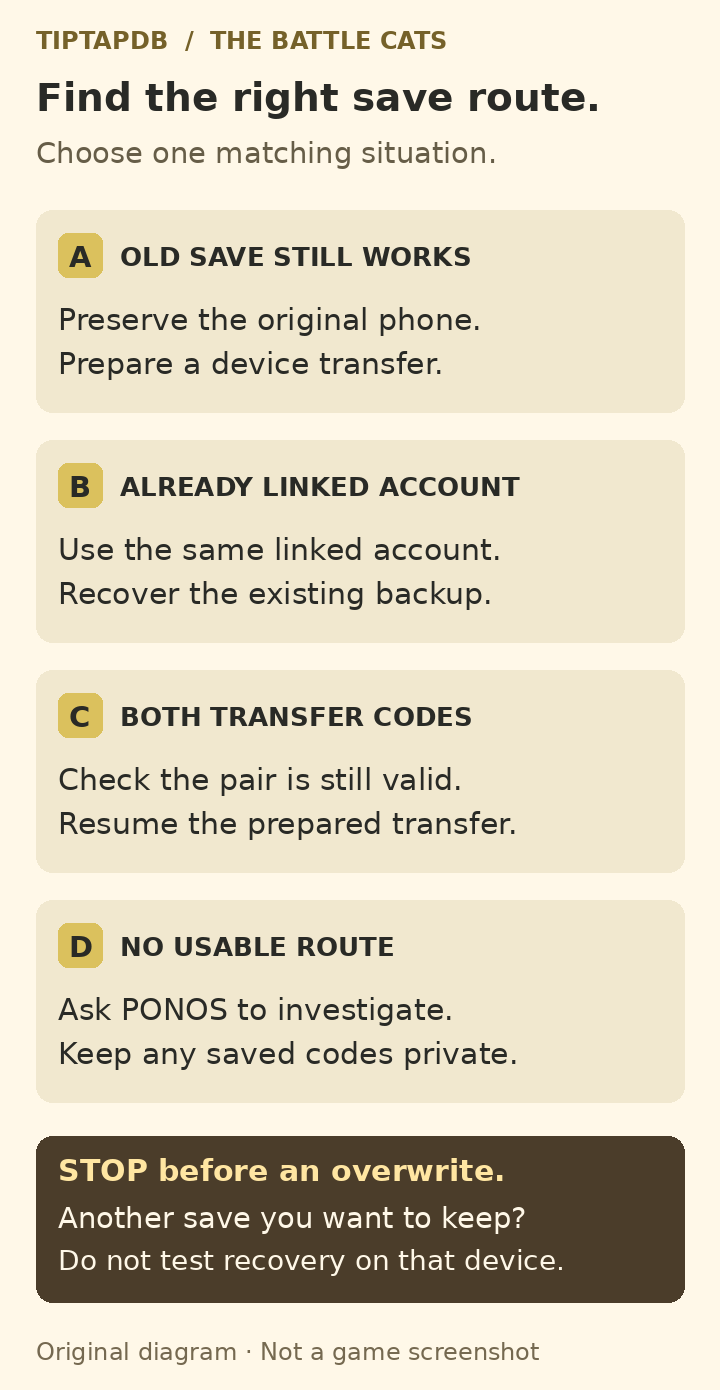
Choose the Battle Cats route matching what remains: a working original save, a previously linked account, an unused transfer-code pair, or official support. Original TiptapDB decision diagram, not an image of the game's interface. The routes are alternatives, not steps to perform in sequence.
- The old save still works: use section 1 to prepare a deliberate device transfer.
- The old save is unavailable, but you linked it to Apple or Google: use section 2.
- You already have both transfer codes: use section 3, provided the pair is still valid.
- None of those works, or you only have an Inquiry Code: use section 4.
Three things that are easy to confuse
Inquiry Code: the identifier PONOS uses for account assistance. It is not the pair you type into a transfer screen. PONOS warns that publishing it can let another person access your account data.
Transfer Code + Confirmation Code: a pair created for a specific transfer. Both are needed; they are not interchangeable with your Inquiry Code.
Linked Apple or Google account: an account connected through the game's Account Link feature. Simply knowing the email used for a store purchase does not establish that this link was completed.
Keep all of these details private. For public troubleshooting screenshots, cover account identifiers and codes. Use official support rather than a stranger offering to recover the save for you.
1. Your old device still opens the save
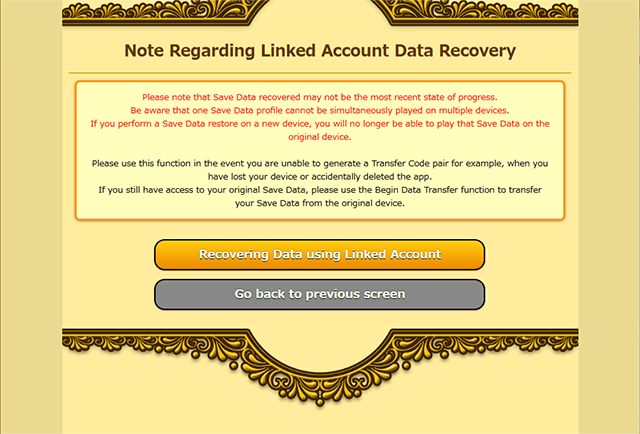
This is the best point to prepare the move, before wiping or replacing the phone. PONOS's Account Link recovery notice directs players who can still access the original save to Begin Data Transfer, rather than using emergency linked-account recovery.
On the old device, follow Settings → Change Account/Device → Change Device → Retrieve Data from Old Device → Save Data to Server. Review the save-to-server confirmation, then record both the Transfer Code and Confirmation Code exactly. Do not proceed with only one code or a screenshot that cuts off part of the pair.
After recording both codes, select Close Game. While the transfer is pending, that save is not available for normal play. Cancel Save Data Transfer invalidates the prepared codes; it is not a harmless Back button. On the receiving device, use the incoming-transfer branch described in section 3. See the official pending-transfer notice.
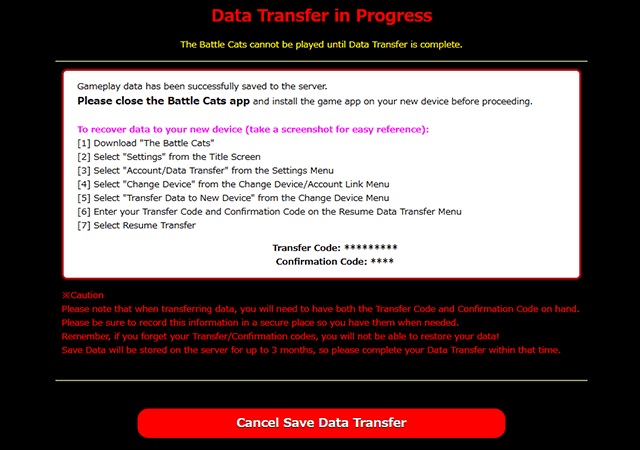
PONOS has both an official illustrated device-transfer walkthrough and an Account Link walkthrough. Use the pictured sending or receiving branch and read the actual confirmation, rather than relying on a remembered button position.
2. The old device is gone, but the save was linked
Use this branch only for an account link you set up on the wanted save. The recovery flow is not the same as linking the new tutorial save.
- From the title screen, open Settings → Change Account/Device → Link Account.
- Choose Recover Data from Linked Account, not Link to an Account.
- Read the notice, choose Recovering Data using Linked Account, and continue to the Apple or Google sign-in offered there. Use the same linked account and provider as before.
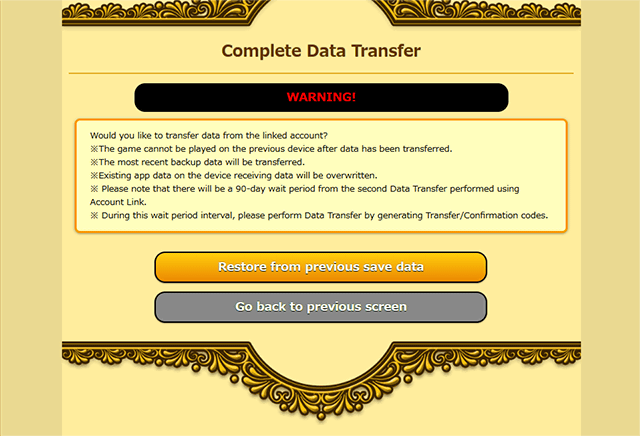
- Review the final confirmation before choosing Restore from previous save data. It replaces the current app data.
- When recovery completes, return to the title screen and check the collection and progression before making further account changes.
If sign-in reports no linked data, check the provider and account before proceeding. Do not choose Link to an Account on a fresh save as a recovery attempt. If you cannot identify the original link, stop and ask support.
The official Account Link screen shows the two distinct choices. The full recovery walkthrough includes the sign-in and final confirmation screens.
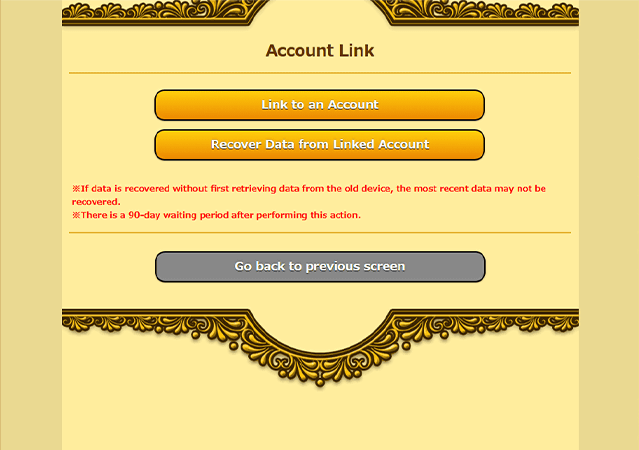
The 90-day limit is not a backup guarantee
The official recovery notice points to the normal two-code transfer during that restriction. That helps only if you can actually prepare or complete that transfer. It does not create codes for a lost phone.
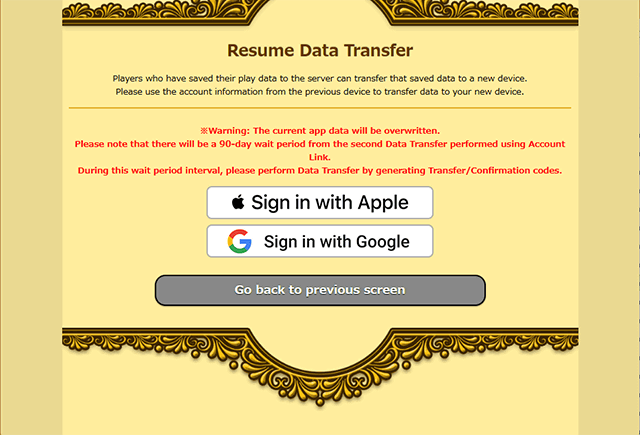
If you are blocked and have no usable alternative, contact PONOS. Do not assume support can waive the wait. Also, the recovered backup may be older than your last session; there is no official promise that the rollback will be only a day or two.
3. You have a Transfer Code and Confirmation Code
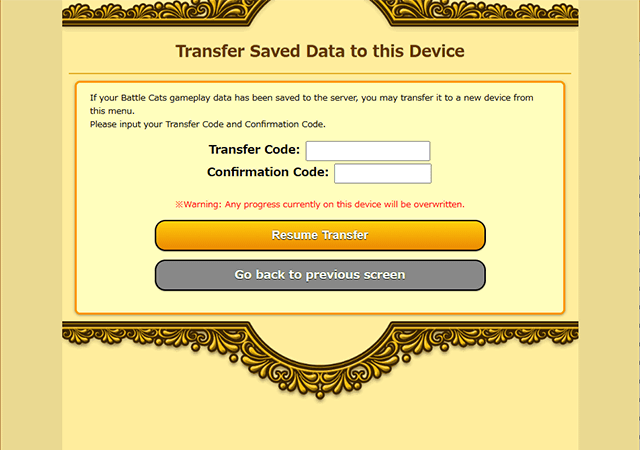
This route resumes an already prepared transfer. On the receiving device, follow Settings → Change Account/Device → Change Device → Transfer Data to New Device. You should reach the screen with two separate code fields and Resume Transfer.
Enter the matching pair, read the overwrite warning and tap Resume Transfer once. Wait for completion, then return to the title screen and inspect the recovered save.
If the pair does not work, check its history before trying again:
- Was it already used? A transfer-code pair is single-use.
- Was that transfer halted or cancelled? PONOS says its previous codes then become invalid.
- Is it within the storage period? PONOS allows up to three months to complete a prepared transfer.
- Are you using the same app edition? English-version saves cannot transfer into another language version of the game.
PONOS supports device transfers between Android and iPhone. The app-edition restriction still applies.
The three-month storage window for a prepared transfer is separate from the 90-day Account Link restriction. Neither means an arbitrary old screenshot of transfer codes will still work.
Use the official two-field receiving screen to identify the right branch. See the transfer rules for timing and edition restrictions.
4. You only have an Inquiry Code, or recovery is blocked
An Inquiry Code is useful evidence for PONOS, not a self-service login. If it is all you retained, ask official support to investigate rather than entering it into a Transfer Code field.
In the app, the documented contact route is Settings → Help → FAQ → Q&A → Inquiries. The web version of the inquiry form explicitly says it will not work correctly in a normal browser, so do not treat that page as a working desktop recovery portal.
If you cannot use the in-game contact route, the official Google Play listing gives support_en@bc01.ponos.net for the English version. Contact that address directly rather than posting your codes in a forum.
Prepare a short, factual account of the problem:
- The lost save's Inquiry Code, if you recorded it.
- The old and current device models, game language and approximate last-played date.
- Whether the original save still opens, was linked to Apple/Google, or had a prepared transfer.
- The exact error or cooldown notice and the steps already attempted.
- Any other account details or purchase evidence PONOS asks you to supply through its official channel.
Mark estimates as estimates. Do not invent a Cat Food total or a date because an unofficial template calls it mandatory. Keep transaction records private and provide only relevant evidence when requested.
If you did not keep the Inquiry Code, first look for a private title-screen screenshot or an older support conversation. A usable pre-existing account link is still a separate route. If neither exists, explain the missing information to PONOS, but do not treat recovery as guaranteed: its precautions describe the Inquiry Code as required for account assistance.
If you have not received a reply
PONOS says a successful in-app inquiry should generate a confirmation email. Check your address, spam folder and filtering for bc01.ponos.net. Its published support hours are 10:00–18:00 Japan time, with possible holiday delays; those are not a promised turnaround time.
Keep the original ticket and any instructions together. When support provides a recovery route, follow that case's directions instead of starting several competing transfers.
After your save returns
Check the collection and progression before retiring the old device. Keep the Inquiry Code in a private place outside the phone, and confirm your Account Link status on the recovered save. These are sensible preparation steps, not a guarantee that every later recovery will be immediate or complete.
The safest next action depends on what you still have: preserve a working original save, recover an already linked backup, finish a valid two-code transfer, or ask PONOS to investigate. Avoid experimenting on a device that holds another save you care about.
Latest comments
Log in to join the conversation
Log InNo comments yet. Be the first to share your thoughts!