If Northgard opens without your campaign progress or saved matches, pause before starting again. Playdigious warns that playing after a reinstall or on a new device before cloud synchronization finishes can overwrite earlier progress. Check the account and loading state first.
This guide covers the Google Play and Apple App Store versions of Northgard. If you use the Epic Games Store edition or are changing stores, ask Playdigious about your exact combination before attempting a transfer. The older cloud-save instructions do not establish compatibility with every mobile edition.
First, identify what is actually missing
- Another device still shows the correct progress: use the two-device transfer sequence below.
- Your saves are missing and no other device has the wanted progress: try the account-and-Restore checks, whether this is your original installation, a reinstall or a new device.
- Only a purchased clan is locked: follow the DLC section. Check your saves separately.
- You are moving from Steam, console or the other mobile operating system: check compatibility before troubleshooting a nonexistent link.
Write down the last chapter or saved match you remember. If an old device still has it, leave that installation intact. A screenshot of its Load screen gives you something concrete to compare with the new device.
Check whether your transfer is supported
Playdigious documents save sharing between mobile devices using the same operating system. That covers Android to Android and iPhone/iPad to iPhone/iPad within the store versions covered here. You need an internet connection and the relevant gaming account signed in inside Northgard. Android-to-iPhone and iPhone-to-Android save transfers are not supported.
Steam, other PC versions and console progress cannot be transferred to mobile through Northgard's supported save-sharing system. Desktop save-folder tutorials are therefore not the route for recovering a mobile campaign.
Mobile multiplayer can include Android and iOS players. Being able to play together does not make their saves transferable between those operating systems.
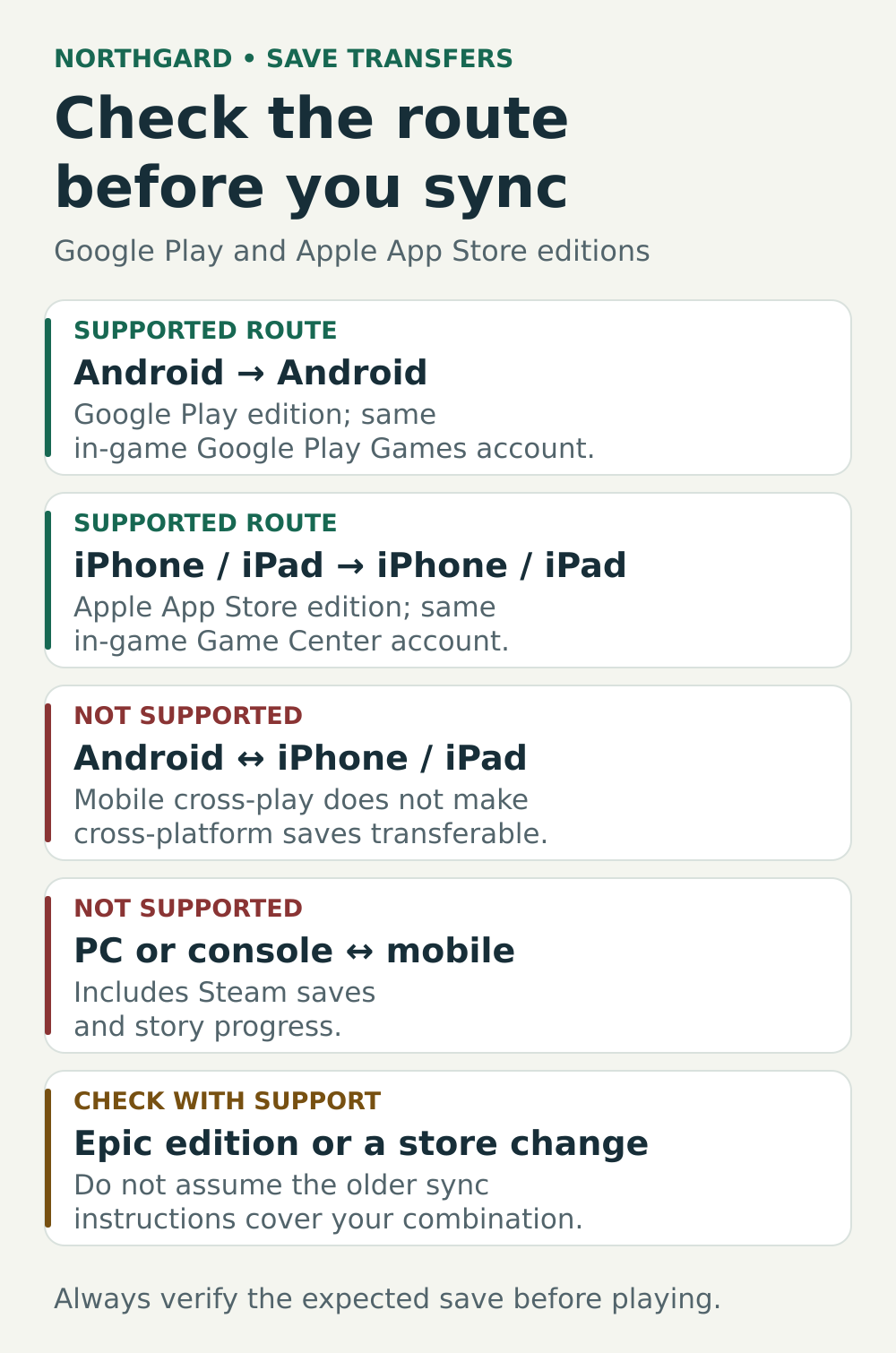
Check the platform and store before changing anything on the device that still has your progress.
If another device still has the right save
Use the device containing the progress you want as the source. Do not alternate between two different campaigns hoping the cloud will merge them. If both devices contain separate progress you want to keep, pause and ask support about that conflict first.
- On the source device, connect to the internet and sign in to the relevant gaming account inside Northgard.
- Open Load to trigger synchronization. Wait until its three dots disappear.
- On the destination device, connect to the internet, sign in to the same gaming account and open Load.
- Wait for the destination's dots to disappear, too. Check that the expected saves and story progress are present before continuing play.
The source-first sequence follows Playdigious's transfer instructions. Those instructions do not specify which copy wins when devices already contain conflicting progress.
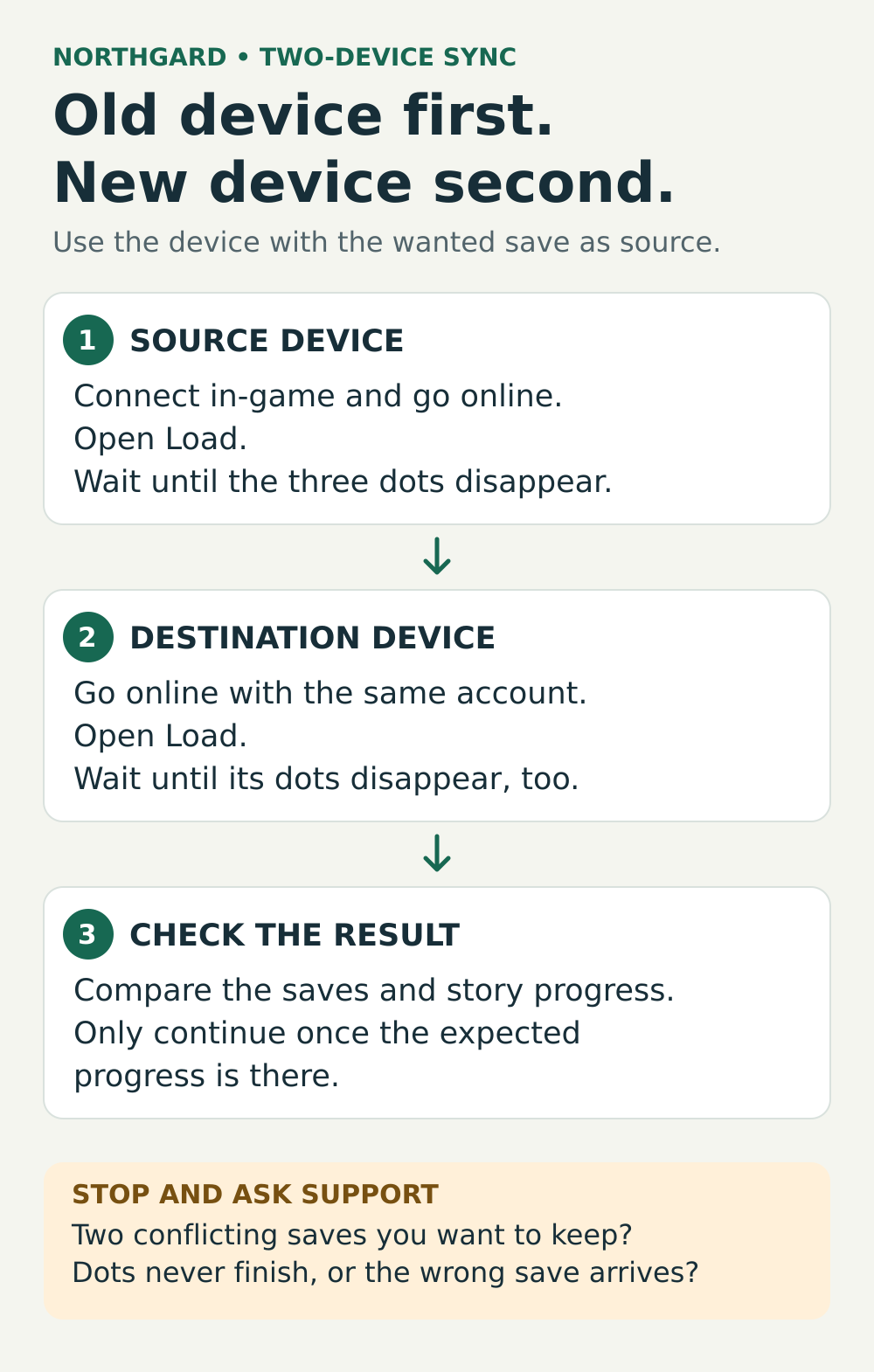
Follow the order, then verify the result. A finished loading indicator alone does not tell you whether the expected campaign arrived.
If you cannot access an intact save on another device
Open Northgard's Options and check the in-game Google Play or Game Center connection. Use the account associated with your earlier progress, select Restore, then open Load. Allow the three-dot loading indicator to finish before playing. Playdigious includes Restore in its lost-progress procedure, as well as in its purchase-restoration advice. It is worth trying, but it is not a guarantee that a missing save exists in the cloud.
On Android, check the gaming account
Do not stop at checking which account owns the app in the Play Store. Google recommends checking the identity used for Play Games: where the game exposes an Achievements or Leaderboards screen, select the profile picture to see the account.
You can also inspect the signed-in account under your Gamer ID in the Play Games app's Settings. Reopen Northgard with the account you used previously. Google's default-account setting for new games is not, by itself, confirmation that this installation is using the right identity.
On iPhone or iPad, check the in-game connection
Use Northgard's Game Center connection in Options, as directed by Playdigious. The App Store listing describes iCloud progress sharing between iOS devices.
Also inspect Settings > Game Center to see which Apple Account it uses. Compare that account with the one used for iCloud and, if available, on the device containing your progress. Apple's guidance for supported games recommends using the same Apple Account for Game Center and iCloud across devices. If the accounts differ, record the mismatch for support rather than signing out of iCloud or repeatedly switching accounts while testing.
Avoid turning a loading problem into deleted data
Do not uninstall immediately. Playdigious recommends contacting support about possible workarounds before reinstalling and states that it cannot retrieve lost cloud data. A recovery attempt can reconnect you to available progress; it cannot promise to recreate an overwritten campaign.
On Android, be especially careful with troubleshooting instructions that say to clear data. Google distinguishes Clear cache, which removes temporary files, from Clear storage, which permanently deletes app data. Do not choose Clear storage or Clear data for Northgard while trying to preserve a potentially recoverable local save. These controls are not interchangeable.
If only your purchased clans are missing
Check that you are connected in-game to the account used for the purchase and that your internet connection is steady. In Options, scroll down toward the credits and select Restore just above them. This is the location given in Playdigious's DLC instructions.
If clans are locked only while offline, check for an available game update. The support article identifies an older fix from version 1.7.5; that number is not a recommendation to install an old build. Recovering access to a clan also does not verify that your campaign or match save has returned.
If the dots never finish, or the wrong progress appears
Record what you actually see before making another change: no saves, an older save, a locked chapter, an error message or a loading indicator that remains active. Note how long you observed it. The publisher does not give a fixed synchronization timeout, so there is no reliable “wait exactly two minutes” rule to follow.
For a useful support request, include:
- Device model, operating-system version, Northgard version and the store you installed it from.
- Whether the original device still has the wanted progress.
- Whether the in-game account matches the one used before. Do not send passwords or sign-in codes.
- What happened immediately before the problem: a reinstall, device change, account change or update.
- Screenshots of the Load screen or error, plus whether the dots finish on each device.
- Any separate progress already created on the destination and which checks you have tried.
Northgard's current Google Play listing gives support@playdigious.mail.helpshift.com as its support address. Explain the save problem first; include purchase details only if the issue also involves DLC. Keep the original installation intact while support checks the case.
Official help and further reading
These links open the publisher’s instructions and the account guidance used above. If your menus or store edition differ, describe that difference when contacting support.
Missing progress and recovery limits
The publisher’s account, Restore and synchronization advice, including its warning about playing too soon.
Read the recovery instructionsTransfer between mobile devices
Supported operating-system combinations and the order for synchronizing two devices.
Read the transfer instructionsPC, console and mobile saves
The publisher explains why Steam or console progress cannot be shared with mobile.
Check platform compatibilityMobile multiplayer compatibility
Android and iOS multiplayer is separate from save-transfer support.
Read the multiplayer answerCheck the Google Play Games account
Google explains how to inspect the gaming account. Do not use its clear-storage step while protecting a local save.
Read Google’s account guidanceNorthgard on the App Store
The official listing describes Game Center and iCloud support for the iPhone and iPad edition.
View the official app listingCheck Apple account settings
Apple’s guidance for keeping iCloud and Game Center progress in sync on supported games.
Read Apple’s account guidanceClear cache and clear storage differ
Google explains which control removes temporary files and which deletes app data.
Check the differenceRestore purchased clans
Where to find Restore and how the publisher distinguishes an offline DLC issue.
Read the DLC instructionsContact Northgard support
The official Google Play listing provides the current Playdigious support email and Help Center link.
Open the official support listing
Latest comments
Log in to join the conversation
Log InNo comments yet. Be the first to share your thoughts!