Checked against official support instructions on November 5, 2026. This guide covers the standard mobile game on iOS, Android and Amazon devices.
Opening a new phone to Day 1 does not, by itself, prove your old pizzeria has been deleted. You may be signed out, using the wrong TapBlaze ID, or looking at a different edition of the game. A local-only save is a different problem again.
Start by finding the device that still shows the progress you want. Then choose the matching route below rather than trying every login and reset option.
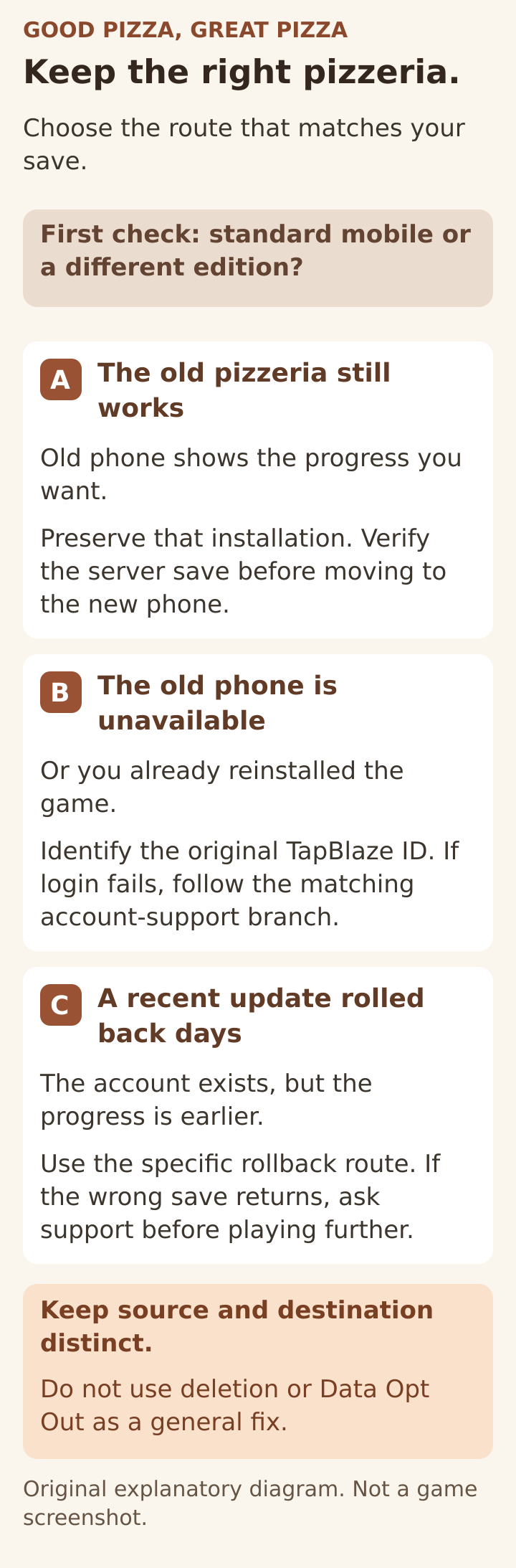
Original TiptapDB decision diagram. Choose the route that matches your save. This is not a game screenshot.
1. Make sure you installed the same edition
TapBlaze's platform guide separates four save systems:
- Standard mobile: TapBlaze ID supports moves between iOS, Android and Amazon devices.
- Steam: a separate Steam-server save, even though it also uses a TapBlaze ID.
- Nintendo Switch: its own save system, without a TapBlaze ID login.
- Good Pizza, Great Pizza+ on Apple Arcade: uses Apple ID, Game Center and iCloud rather than the standard mobile route.
Progress does not move between those editions. If you changed from the regular iPhone app to the + app, stop treating the missing mobile save as an email-code problem. Check the app's full name before changing accounts.
2. Identify the save, not just a name or number
Open Settings on the device with the correct pizzeria and capture the current details for your own records. Note the Chapter, Day and game version. If available, capture T Account, including the linked email and TapBlaze ID number.
Three details are easy to confuse:
- A player ID, shown as an id: number, does not establish that you have a server-backed TapBlaze account. The account-button FAQ says a player-ID-only save remains on the device.
- A TapBlaze ID identifies the account used for the game's server save. TapBlaze's save setup instructions explain the email-based registration and verification process.
- A BakedIn ID is not a substitute for an old TapBlaze ID when support searches for lost progress, according to the returning-player FAQ.
Keep those screenshots private. The purpose is to distinguish the source account from a new destination account, not to post your account details in a public recovery thread.
Route A: The old phone still has the correct progress
This is a transfer task, not a reason to experiment on the new Day 1 save.
Follow TapBlaze's current device-transfer procedure:
- Update the game on both devices.
- On the old device, confirm the correct TapBlaze account, play one complete day online, and inspect the Day Summary.
- Continue only when it says Saved to Server. Saved to Local means the progress is not ready to move.
- On the new device, use Settings → T Account and sign in with the same email. If the account control is missing, use the next section.
If the old device is not signed in to a TapBlaze ID, the same official guide says not to sign the new device into a different account first. Send support Settings screenshots from both devices and explain which one contains the pizzeria to preserve.
After moving, use one device at a time: an older save can roll back newer progress. Check the destination's Chapter, Day and important items before retiring the source phone.
The T Account button is missing
For version 5.59.0 and later, the official button instructions point to Settings → Data Opt-In. The account control appears after the opt-in process.
If you already opted in, update and fully close and reopen the game. If the control is still absent, send support a Settings screenshot. Older forum advice about a missing button is not enough to diagnose your current installation.
Route B: The old phone is gone, or you already reinstalled
Use Settings → T Account to sign in to the original TapBlaze ID. If you cannot remember the address, search your own inboxes for TapBlaze and previous verification messages. The returning-player FAQ also directs players to the original login.
Do not treat a newly created account as proof that the old one is empty. It may simply be a different account. Likewise, receiving a verification code establishes access to that email, not that it owns the pizzeria you remember.
If there was never a TapBlaze ID, the developer says the save was local, with no server copy to return. Once that local data is gone, this guide cannot promise a recovery. Gather any account records you do have and ask official support to assess the case, rather than paying a third party claiming it can retrieve any save.
The verification email does not arrive
TapBlaze's code troubleshooting checklist says to:
- Check Spam, Junk and Promotions.
- Search for “TapBlaze” and check the address you entered.
- Wait a few minutes before requesting another code.
- Contact in-game Help/Support with the exact sign-in address if nothing arrives.
Enter a current code only in the official game's matching sign-in flow. Do not forward verification codes to a person offering recovery help.
You no longer control the old email
Use the current email-change support route, not repeated login attempts. It distinguishes an old account that is still signed in from an account you can no longer access.
If the old account is open, capture its Settings before signing out. The procedure asks for one additional proof of ownership, such as a purchase receipt or your current Day, Funds and Gems, plus a clearly identified new TapBlaze ID. If you are locked out, support requests the new ID/email and the old ID or email to check whether a transfer is possible. Follow that route deliberately; a new account is the destination, not an automatic recovery tool.
The official article says a completed transfer removes the old account, and full restoration is not guaranteed. Confirm the intended source and destination with support before proceeding.
Route C: Only a few days disappeared after an update
Record your visible progress and confirm your sign-in details first. For this specific case, the official lost-data FAQ recommends the sequence below. The stop-and-check in step 4 is our precaution:
- Settings → T Account → Log Out.
- Wait 3–5 minutes.
- Sign in with the same method and email.
- If the intended progress is back, complete a day and check for Saved to Server. If it is still wrong, stop and ask support to review it before playing further.
Do not substitute Data Opt Out, Erase Data or Delete Account. Ask support if you cannot identify the account.
Returning to an older Google or Facebook account
Google Play Games and Facebook login support ended on June 1, 2024. The official discontinuation notice still tells affected players to submit evidence of the old TapBlaze ID for a review. A visible old ID or a saved Settings screenshot is therefore worth preserving.
The documentation is not fully consistent: newer FAQs describe those older logins differently from the discontinuation notice. Do not conclude from that wording alone that your old server record never existed. Support must check what remains.
Send support one clear recovery request
Use Settings → Help/Support, the contact route linked throughout the current official instructions. Include only the evidence relevant to your case:
- Which edition you use, your device models and current game versions.
- Whether the old installation still works and whether you saw a local or server save.
- The old TapBlaze ID and available Settings screenshots, clearly labeled old/source and new/destination.
- The Chapter and Day you expected, what appears now, and when the problem began.
- Relevant purchase receipts, if you have them, as requested by support. A receipt helps an investigation; it does not prove a complete save can be reconstructed.
Describe what actually happened, including any reinstall, account change or second device. Do not guess missing identifiers. Keep passwords, verification codes and unrelated payment information out of the request.
The goal is to preserve the best remaining copy and identify the correct account. No guide can guarantee that a local-only save, deleted account or expired server record will return.
How this guide was checked
This guide uses official TapBlaze support pages, with current mobile procedures checked against the October 14, 2026 updates. Source disagreements are disclosed instead of silently combined. We did not perform a live recovery or test a player account. The diagram is original explanatory artwork; no recovery result or game screenshot has been fabricated.
Latest comments
Log in to join the conversation
Log InNo comments yet. Be the first to share your thoughts!