
A DYSMANTLE save can be in the right folder, have the right filename and still fail to replace your Android progress. The catch is the file’s modified date: the import copy must be newer than the save already inside the game. An older incoming file can be overwritten instead.
Before trying again, protect the copy you want to keep. Do not uninstall DYSMANTLE, clear its storage or delete the old phone’s save to force a transfer. Start with a backup outside the game’s folders, then check the slot and timestamps.
Find the branch that matches your problem
- The save folder is missing or inaccessible: go to the Android storage section below. A file manager’s empty view does not prove that your progress has disappeared.
- The file copies successfully but the game loads old progress: check its slot folder, modified date and the launch shortcut.
- Android progress does not appear on Windows: check that profile.save is inside a numbered slot folder, not directly inside save.
- The game itself no longer has the progress, and you have no backup: this transfer process cannot reconstruct a save that is no longer available.
These instructions cover Android and the Windows save location. They are not an iPhone, iPad or console transfer procedure.
Keep three copies separate
Treat the folder used for import and export as a temporary transfer area. Do not leave your only backup there: the game’s exchange process can replace files in that location.
- Source backup: copy the progress you want to preserve to a separate folder on your computer or another safe location. Label it with the device and date. Keep its original folder structure.
- Destination backup: if the receiving device already has progress, preserve that separately before replacing anything.
- Working copy: make another copy of the desired source save for the transfer. Use only this copy for timestamp changes or replacement attempts.
Keep DYSMANTLE closed while copying files. Do not continue playing on either device in the middle of the transfer. That makes it harder to know which copy is current.
Android removes app-specific files when an app is uninstalled. A backup still sitting under the game’s Android/data directory is therefore a poor safeguard against reinstalling it.
Export from Android using the app icon
Update through Google Play if an update is available. The developer’s FAQ lists 1.1.1.35 as the minimum version for this feature; that is a historical minimum, not a recommendation to install an old build.
Before using the shortcut, check the transfer folder below with the game closed. If it contains files from an earlier transfer, back those up separately and move them out of this folder first. The same shortcut can import a newer staged file instead of exporting the progress you meant to protect. If you cannot inspect the folder safely, stop and use the storage checks below.
The documented transfer location is:
Android/data/com.the10tons.dysmantle/files/save
Look under the device’s internal storage, using a file browser or a connected computer that can access it. With previous transfer files safely set aside, long-press DYSMANTLE’s launcher icon and choose Export/Import Save. The game opens normally. Close it afterward and copy the exported save folder to your separate backup location.
If the shortcut is absent, check the installed game’s update status and the launcher’s app-icon menu. Do not reinstall merely to make the shortcut appear. If the folder cannot be read, stop at the storage checks below rather than assuming the export failed.
Check the numbered slot folder
The developer’s Steam FAQ explains that numbered folders correspond to save slots. Preserve the folder containing the save you actually want; do not combine files from different playthroughs just because their filenames match.
For Android-to-Windows transfer, a developer confirmed this example:
C:\Users\<USERNAME>\AppData\Roaming\10tons\DYSMANTLE\save\0\profile.save
The 0 is a folder. Putting profile.save directly in save leaves out that level. You can reach the Windows save directory by entering the following in File Explorer’s address bar:
%APPDATA%\10tons\DYSMANTLE\save
With the Windows game closed and its existing save backed up, place the intended profile.save in the appropriate numbered slot folder. The developer’s example uses 0; preserve the slot structure you have identified rather than assuming every playthrough belongs there.
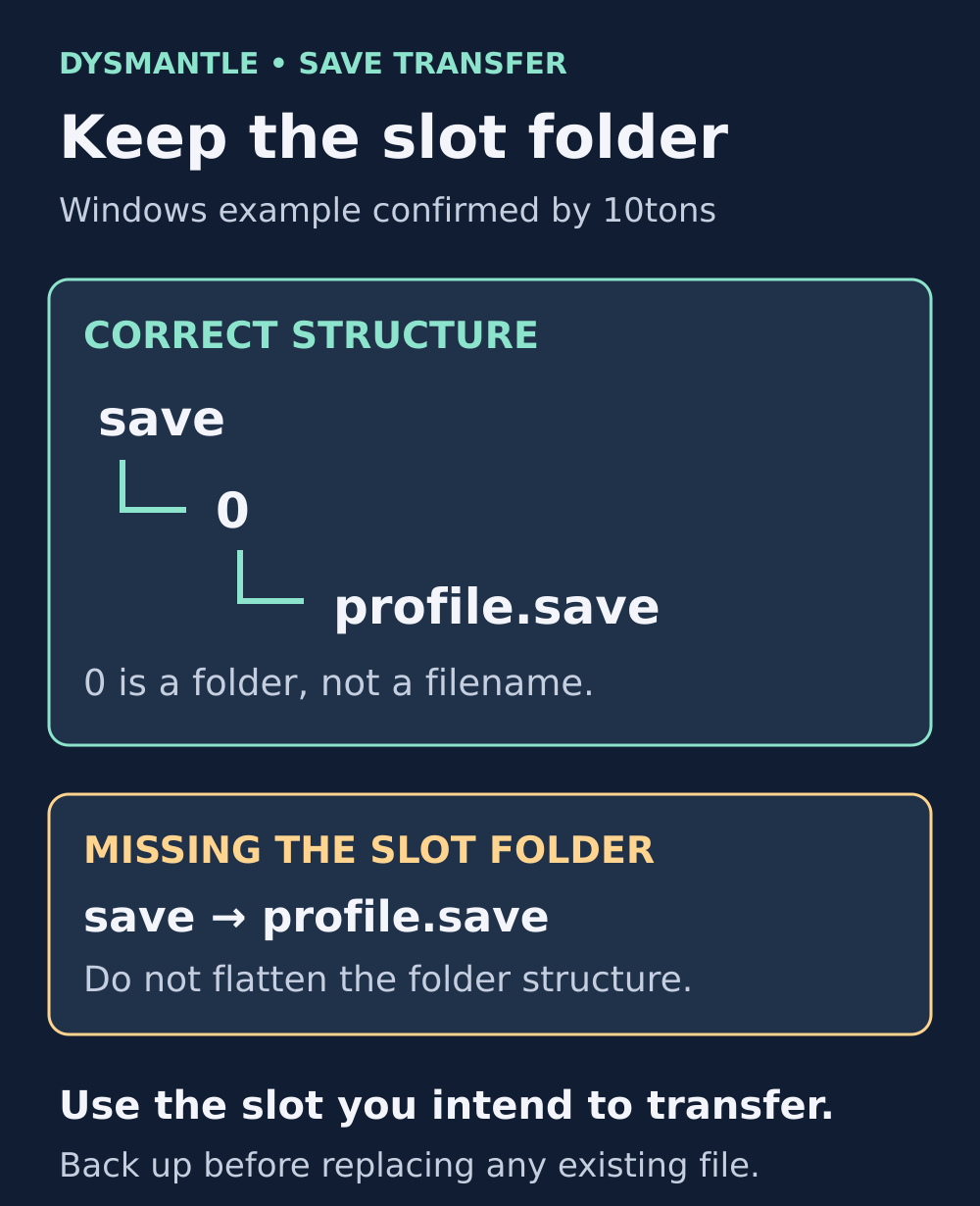
Keep the numbered slot folder. The developer’s Windows example is save → 0 → profile.save.
Why a more advanced save can lose the import
The Android shortcut compares modification times, not your level, playtime or quest progress. A backup containing 100 hours of progress can have an older timestamp than a new game containing ten minutes.
In this example, all times are on the same day:
- Existing Android save: modified at 15:00.
- Desired incoming backup: modified at 14:00.
- Result: the incoming copy does not meet the developer’s “newer” requirement. It is at risk of being replaced by the existing save.
Use Date modified, not Date created or the time you downloaded the file. Renaming a file does not establish which progress it contains. Do not rely on a tie between timestamps either: the documented condition is strictly newer.
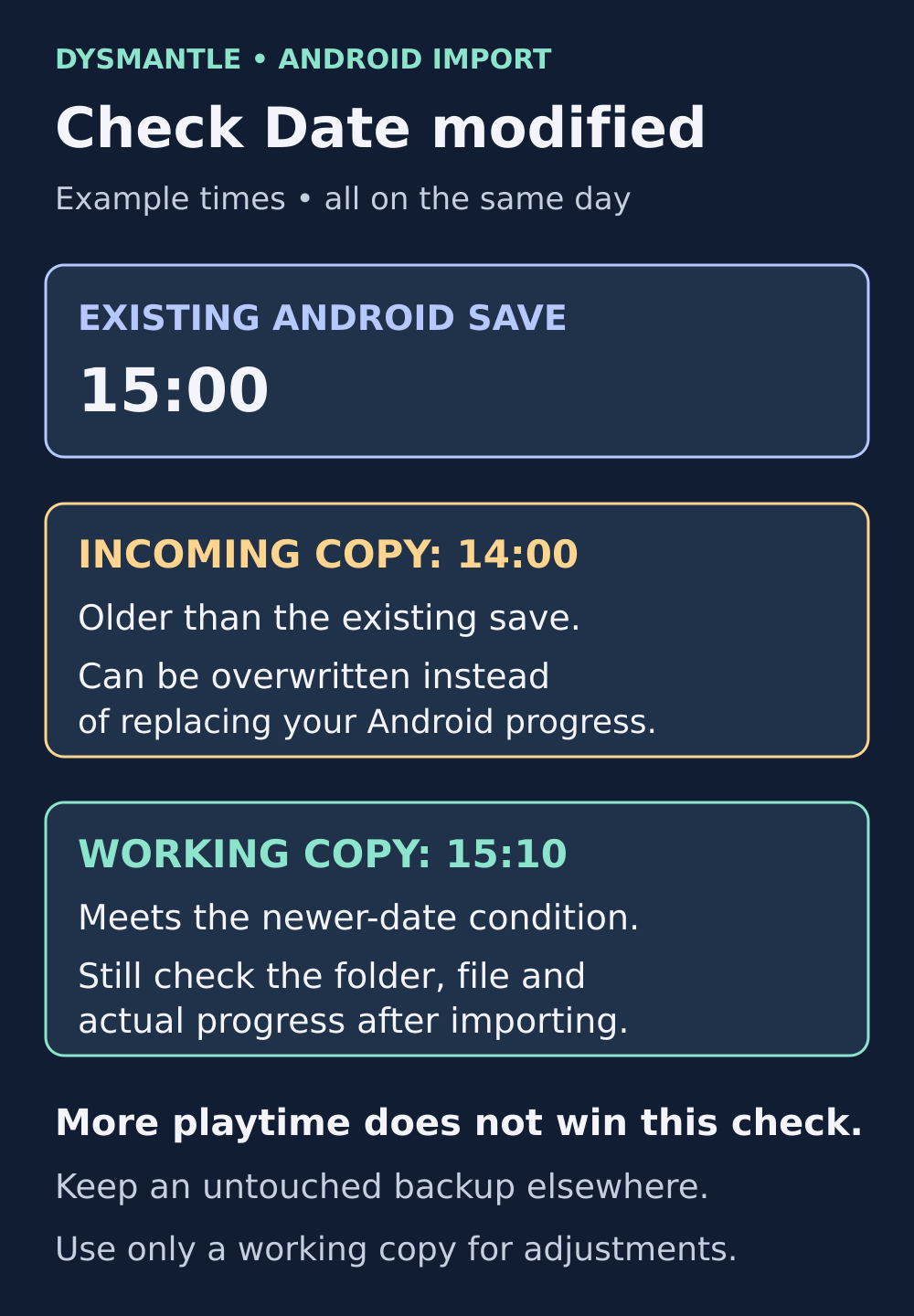
Example times only. A newer modified date meets one import condition; it does not prove that the file contains the progress you want.
Import without risking the only good copy
First preserve the receiving Android device’s current save through a separate export and backup, if it has progress to keep. Follow the export precautions above so an old staged file is not imported accidentally. Finish that before placing the desired incoming files in its transfer folder.
Then copy the working copy into the documented Android transfer location, preserving the numbered slot structure. Recheck the file’s modified date after copying, because transfer tools can handle timestamps differently. Compare the full date and time against the receiving save’s recent export when available, accounting for time-zone differences. Keep the destination game closed afterward.
If the intended backup is older, a fresh save and export from the source device may help, but only when that device still loads the correct progress. For a backup-only restore, Windows can update a working copy’s modification time without editing its game data. This is a standard file-metadata operation; it does not guarantee that DYSMANTLE can import or load that save.
Optional: refresh a working copy’s timestamp on Windows
Use this only after making the untouched backups above. Replace the example path with the full path to your working copy, not the live Windows save or your only backup. Open PowerShell normally; administrator access is not needed for a file you own in an ordinary personal folder.
$path = 'C:\YOUR-WORKING-COPY\0\profile.save'

(Get-Item -LiteralPath $path -ErrorAction Stop).LastWriteTime = Get-Date

Get-Item -LiteralPath $path |

    Select-Object FullName, LastWriteTime
This changes that file’s Date modified to the computer’s current time. It does not add progress, repair corruption or convert a save format. Check that the resulting time is later than the receiving save, then inspect it again after copying to Android. If the receiving timestamp appears to be in the future, stop and check device clocks rather than choosing an arbitrary future date. Do not change the phone’s clock to force the import.
Once the correct copy is in place, long-press the Android game icon and use Export/Import Save again. An ordinary tap is not the documented import command.
Load the intended slot and inspect recognizable progress: your character level, important equipment and a recent quest or location. Keep both backups and the old device’s save until you have confirmed the intended playthrough loads correctly.
Android/data is blocked or looks empty
Android 11 introduced restrictions on access to other apps’ data directories. Standard file-picker access to Android/data is restricted, and granting a file manager “all files access” does not automatically unlock other apps’ folders there.
Behavior also varies with the phone, system components and file manager. X-plore’s developer notes that on Android 14 and later, the app cannot even reliably determine whether individual folders exist under Android/data. An empty listing is not a reliable deletion diagnosis.
A connected computer may provide access, as the game’s FAQ suggests, but USB is not a universal fix. If your available tools cannot read and write the directory, keep the source device and independent backups intact. Do not root the phone, remove security updates or clear the game’s data as a routine troubleshooting step.
Still loading the wrong progress?
Record the following before contacting support:
- Source and destination devices, Android version and both DYSMANTLE build numbers.
- Transfer direction, such as Android to Windows or Windows to Android.
- The slot folder, filename and modified dates before and after copying.
- Whether the launcher shortcut was used, and exactly what happens afterward.
- Any error message, plus whether the source and destination have different DLC installed.
The developer describes manual Android-to-desktop transfer, but does not provide a complete compatibility table for every build and DLC combination. Updating both installations is sensible preparation, not a guarantee. Do not assume that transferring a save also transfers a DLC purchase.
Use the support contact listed on the game’s Google Play page for your device-specific issue. Keep save files private unless support asks for them through an appropriate channel.
Sources and further reading
The developer’s Android transfer instructions
10tons documents the launcher shortcut, transfer directory and newer-modified-date requirement.
Read the DYSMANTLE FAQWhy an independent backup matters
Android explains what happens to app-specific files when an application is uninstalled.
Read Android’s storage documentationNumbered folders and save slots
The pinned developer FAQ lists the Windows save directory and explains the numbered folders.
Read the developer FAQThe complete Windows save path
A developer’s May 2024 answer confirms the numbered subfolder and profile.save placement.
Read the developer’s answerChanging a file’s modification time
Microsoft demonstrates setting LastWriteTime with PowerShell.
Read Microsoft’s exampleAndroid 11 storage restrictions
Android explains the restrictions on selecting and accessing other apps’ data directories.
Read the Android documentationWhat all-files access does not grant
Android’s documentation excludes other apps’ specific data directories from this broad permission.
Read the permission limitsWhy Android/data may look empty
X-plore’s documentation describes device differences and Android 14 folder-visibility limitations.
Read the access limitationsDYSMANTLE on Google Play
Find the official Android listing and its App support contact.
Open the official app listing
Latest comments
Log in to join the conversation
Log InNo comments yet. Be the first to share your thoughts!