If Dawncaster opens on a new device with missing progress, first identify what is missing. Fateshards, unlocks and earned Banners belong to the progression that Unity Cloud is designed to share. Your unfinished adventure, Codex and store purchases follow different rules.
Keep the device that still has your progress intact. Do not erase its app data, reinstall the game or unlink accounts while trying to make the new device catch up. A successful sign-in alone does not prove that everything you care about has transferred.
Start with the missing item
- Fateshards, unlocked rewards or earned Banners: check the Unity Cloud account and the transfer steps below.
- Achievements: check Unity Cloud too. Cross-platform achievement syncing and Fateshard rewards arrived after the Steam launch, so early launch-day instructions are incomplete.
- Continue is missing, or your current deck is absent: check the active-run section before resetting anything.
- Codex entries or run archives: do not assume these travel with your unlocks.
- A purchased expansion is locked: check which store owns the purchase. Connecting accounts does not transfer a store licence.
The developer's mobile-to-Steam explanation specifically separates Fateshards, unlocks and Banners from individual runs and Codex. That distinction is the fastest way to avoid troubleshooting the wrong problem.
Which progress transfers?
Wanderlost explains the Unity Cloud transfer scope and its exclusions.
Read the developer reply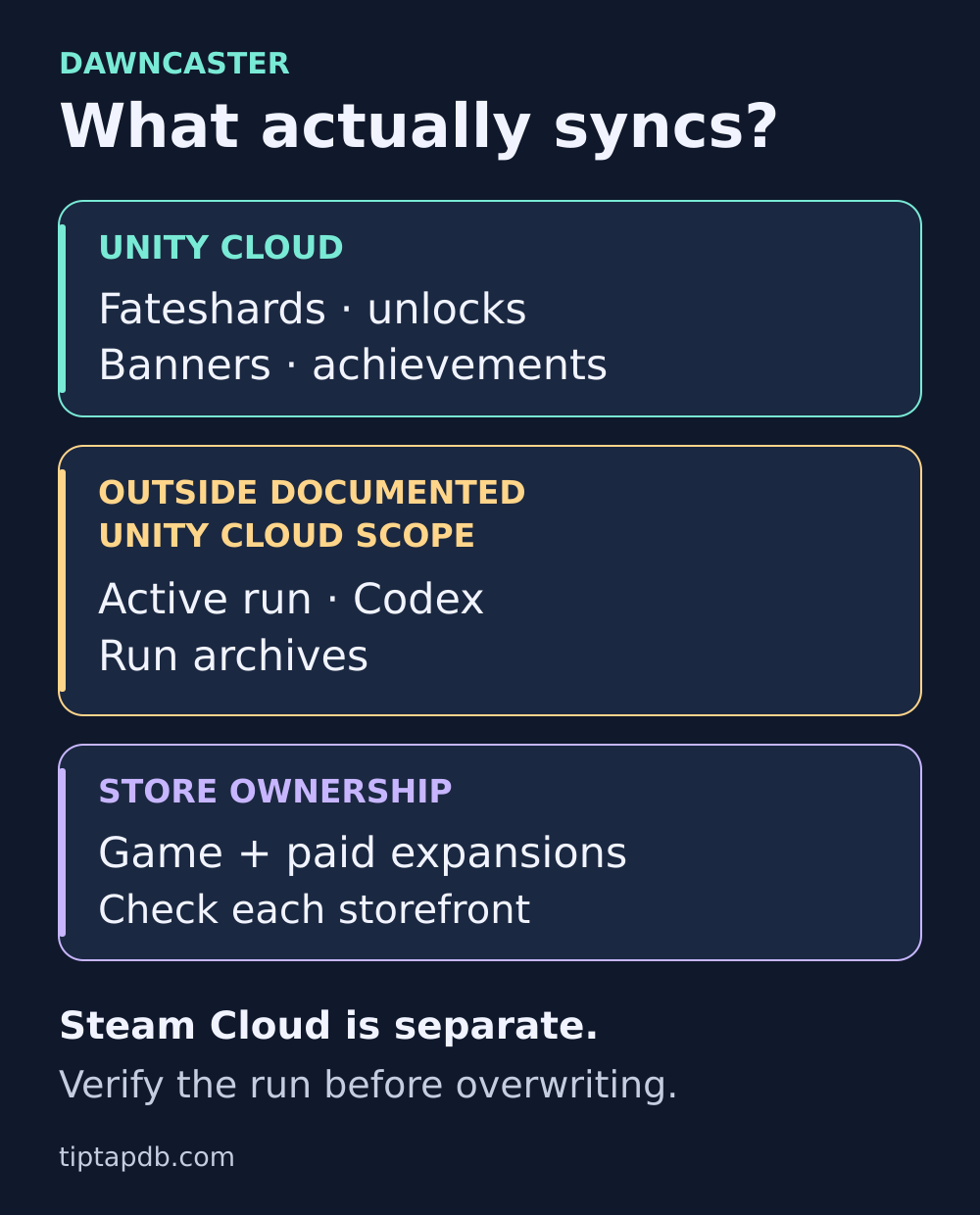
An unfinished run or locked expansion can remain on one device even when your shared unlocks have arrived.
Before changing anything, record what you still have
On the device with the progress you want to keep, note your Fateshard balance, one recognisable unlocked reward and an earned Banner if you have one. Take screenshots for your own reference. Also record the installed game version and any account identity shown by the Unity Cloud screen. If the screen does not let you confirm the account, do not guess.
This gives you a concrete comparison later. A balance by itself can be misleading if you have spent shards since checking it. A particular unlock is easier to recognise than a vague impression that the account looks right.
If both devices have different progress that you want to preserve, pause here. Do not assume that connecting them will combine every unlock, balance and run. The public instructions do not establish a safe merge rule for every conflict. Ask support which account or save to keep before choosing an overwrite option. Checking the original device first does not make its save automatically win a conflict.
Check Unity Cloud on both devices
Use this order for a new phone or a move between mobile and Steam:
- Update both copies through their official stores. Then open the copy that still has your progress. An old build can expose different login options or errors.
- Open the game's Settings and find Unity Cloud. Follow the account flow offered by your installed version. The Unity connection needs to be checked inside Dawncaster, even if your phone is already signed into Google Play or Apple services.
- Check the Unity account on the original device. Confirm it is the intended account wherever the game provides that information. Record any error instead of repeatedly creating new accounts or linking different identities.
- Open Dawncaster on the destination and use that same Unity account. Matching store purchases or a familiar email address elsewhere does not verify the in-game connection.
- After sign-in completes, reopen the game normally once if the expected progression has not appeared. Compare your chosen unlock, Banner and Fateshard balance before playing further.
The developer confirms that Android-to-Steam progression uses Unity Cloud in this transfer discussion. A player there saw the unlocks after relaunching. Treat a relaunch as one simple check, not a promise that every account problem fixes itself.
Android to Steam
The developer confirms Unity Cloud support; a player describes checking the result after relaunching.
Read the discussionA July new-phone support discussion illustrates the other common trap: the old and new phones used the same Google Play account, but the player still needed help with Unity syncing. If you cannot find the Unity option, check for an app update and look through Settings, including any advanced section. Avoid following an old screenshot as though every current version has the same layout.
Moving to a new phone
A player with matching Google Play accounts gets help with Unity syncing.
Read the support discussion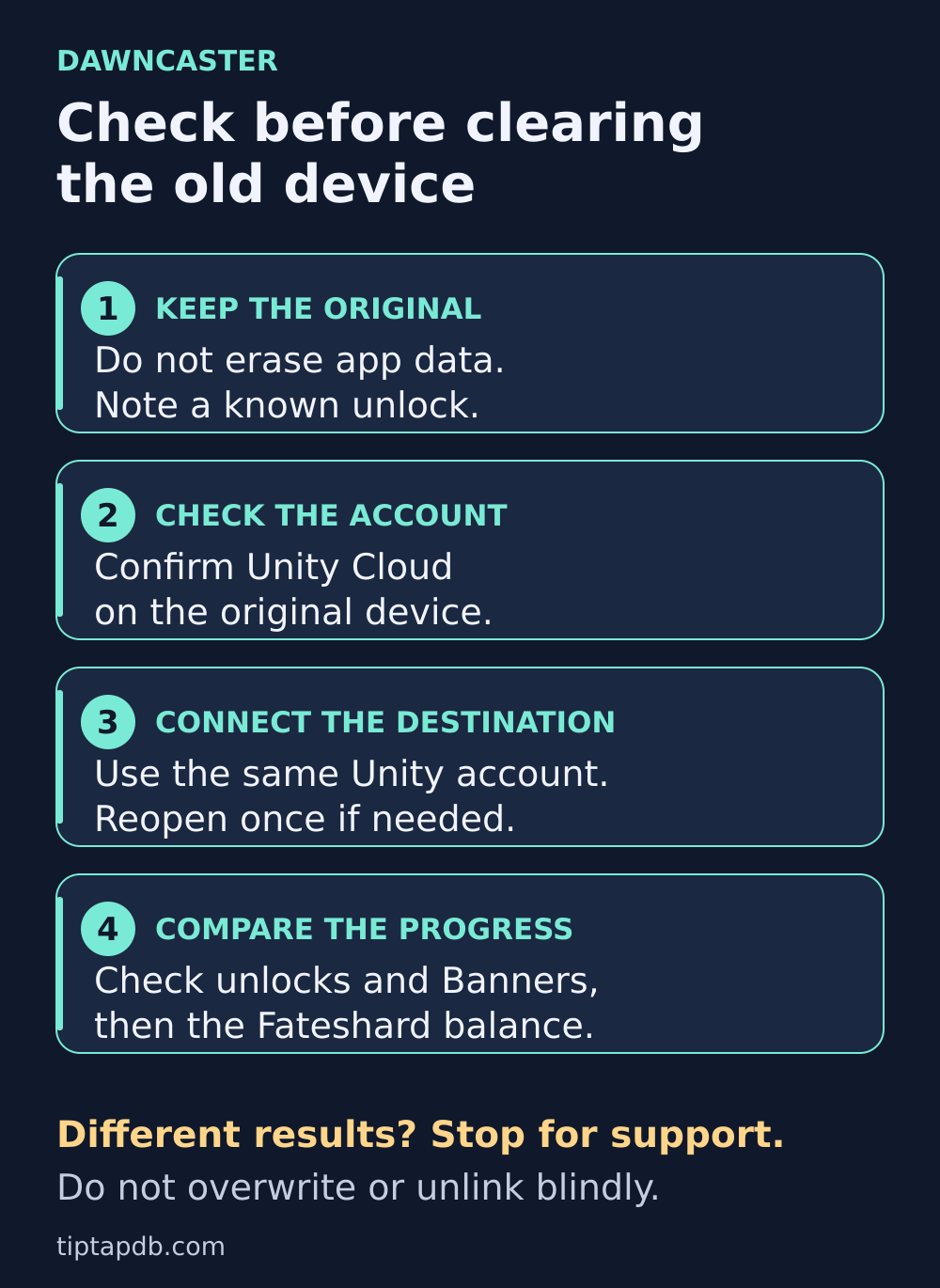
Keep the original installation until you have checked the progress on the destination. Stop before overwriting or unlinking if the accounts disagree.
A login error needs a current check
Launch-era posts mention an invalid-ID message that sometimes appeared even after a connection succeeded. Do not assume that every present-day error has that harmless explanation.
Later updates changed the account flow. The November 2 patch, 1.19.005, added an option to unlink Apple, Google Play or Steam when signing out of Unity Cloud, alongside fixes for mobile run-history uploads and some Steam achievements.
November cloud changes
Patch 1.19.005 adds optional account unlinking at sign-out and fixes history uploads and Steam achievements.
Read the patch notesRead a sign-out prompt before accepting it. Unlinking an account is an additional change, not a routine refresh. If authentication repeatedly opens a browser, returns to a restarted game and asks you to sign in again, record that sequence for support. Do not keep cycling through unlinking, fresh accounts and data deletion.
Why your unlocks can transfer while Continue is missing
Unity Cloud's documented transfer scope excludes the active run and progress inside it. You can therefore have the correct long-term unlocks on a second device without being able to continue the adventure you started on the first. The developer reiterated the run-status limitation in a June support reply.
Why the current run stays behind
Wanderlost explains that its cloud saves do not transfer run status.
Read the developer replyIf the original device still opens that run, keep playing it there. Do not start a replacement run simply to test whether the old one will appear afterwards, especially if the game warns that the new run will overwrite an existing one.
Codex and archives also need separate expectations. The developer's Unity-versus-Steam explanation excludes them from Unity syncing. November's fix for uploading run history does not announce that unfinished runs or Codex entries now transfer between platforms. Avoid resetting Codex or history to force a download.
Unity Cloud and Steam Cloud
Read the developer explanations and the report of a missing Continue option despite an up-to-date Steam status.
Read the discussionMoving between Steam Deck and PC?
Steam Cloud is a separate system from Dawncaster's Unity account sync. Developer replies have described different expectations for Steam-to-Steam run transfer, so there is no reliable basis here for promising that every active run will follow you.
Close the game normally on the source device and check Steam's cloud status before opening it elsewhere. On the destination, verify the actual Continue option and expected run, not just an “up to date” status. If Continue is absent but New Game warns that it will overwrite a run, stop rather than accepting the warning. Tell support exactly that. A player reported this combination in the Steam Deck/PC discussion above.
DLC is tied to the store where you bought it
A missing expansion does not necessarily mean your progression sync failed. In a July reply about Nexus of Nightmares, Wanderlost explicitly confirms that Android and Steam purchases are separate, even when the accounts are linked.
Buying Nexus on two platforms
Wanderlost confirms that linked Android and Steam accounts still need separate expansion ownership.
Read the developer replyBefore spending money again, check:
- Which platform and storefront issued your receipt.
- Which account currently owns the game on the destination.
- Whether you are missing the expansion itself or merely an unlock inside the game.
- Whether the edition or bundle you own actually includes that expansion.
On the same storefront, use its purchase history and the game's purchase-recovery option if available. If a recognised purchase stays locked, send the receipt details through official support. A purchase from a different storefront needs separate ownership there; Unity login cannot convert it.
Be careful with launch articles saying the Steam version includes “all DLC”. As checked on November 5, 2026, the Steam store bundle includes the base game and five earlier content expansions. Nexus of Nightmares is listed separately. Check the current bundle contents before buying, and do not purchase extra DLC merely to repair missing Fateshards or unlocks.
Check the current Steam bundle
Compare the included expansions with separately listed DLC before purchasing.
View the Steam storeAchievements do not award the same reward twice
Achievement syncing arrived after the initial Steam release. Use the same Unity account across devices and update both versions before comparing achievements. Their Fateshard rewards are granted once per unlock, not once per platform, according to the achievement update.
Achievement syncing and rewards
The achievement update explains shared progress and the once-per-unlock Fateshard reward.
Read the patch notesAn achievement appearing on another platform therefore does not entitle the account to a second payout. If the achievement itself is missing, note its name and both game versions for support. Keep that issue separate from a missing active run.
If it still does not match, send a useful support report
The official Dawncaster troubleshooting page lists hello@wanderlost.games and the game's Discord.
Contact Dawncaster support
Find the official email and Discord links for a problem that remains unresolved.
Open support contactsSend a short report with:
- Source and destination devices, operating systems and storefronts.
- Dawncaster's installed version on each device.
- Exactly what is missing: unlocks, Fateshards, Banners, achievements, a run, Codex or a purchase.
- Whether either device still has the desired progress.
- Whether both show the intended Unity account, plus the exact error or conflict wording.
- What you tried and which step changed the result.
Attach relevant screenshots with unrelated personal information hidden. Do not send passwords, sign-in codes or recovery codes. For a purchase issue, provide receipt details privately through official support rather than posting them in a public discussion.
If the original phone has already been erased, say so. Support may be able to investigate the account, but there is no guaranteed restoration of a run or data that was never part of the supported cloud transfer.
Before retiring an old device, confirm the unlocks you wanted on the new one and decide what to do with any run that remains on the old installation. Check the actual progress first; clear the old device only after that decision.
Latest comments
Log in to join the conversation
Log InNo comments yet. Be the first to share your thoughts!